Databot Desk: what your bot can’t resolve reaches your team with an owner and a deadline
Databot Desk is the second-tier desk of your customer service: the bot creates the ticket when your instruction says so, and your team resolves it with an owner, a deadline and the full history. It’s already included in your plan.
A good AI agent resolves most requests: FAQs, products, order status. But there’s always a group of cases that needs a person: a product that arrived damaged, a double charge, a customer who asks to talk to an agent. That’s where service usually breaks down: the case gets lost in a chat with no owner or deadline, and the customer writes again to ask “what about my complaint?”.
That’s why we’re launching Databot Desk, the second-tier desk of your customer service. The bot creates the ticket when your instruction says so, and your team resolves it with full context, on the same platform where your bot already lives. See how it works in 25 seconds (video in Spanish):
What Databot Desk is
Databot Desk is your escalation tool: the second tier for requests only a human can resolve. Each one is logged, assigned and given a deadline.
| Tier | Who | What it does |
|---|---|---|
| Tier 1 | AI agent | Answers FAQs, products and orders, 24/7, on web, WhatsApp, Instagram and Messenger |
| Tier 2 | Databot Desk | Creates the ticket with the data already collected and the conversation attached; it lands in the inbox with priority and SLA |
| Closing | Your team | Takes the case, replies by email in the same thread and closes it with the full history |
And the loop closes in the bot: your customer asks about their tracking code and the bot tells them their case status.
An after-sales case at 23:47
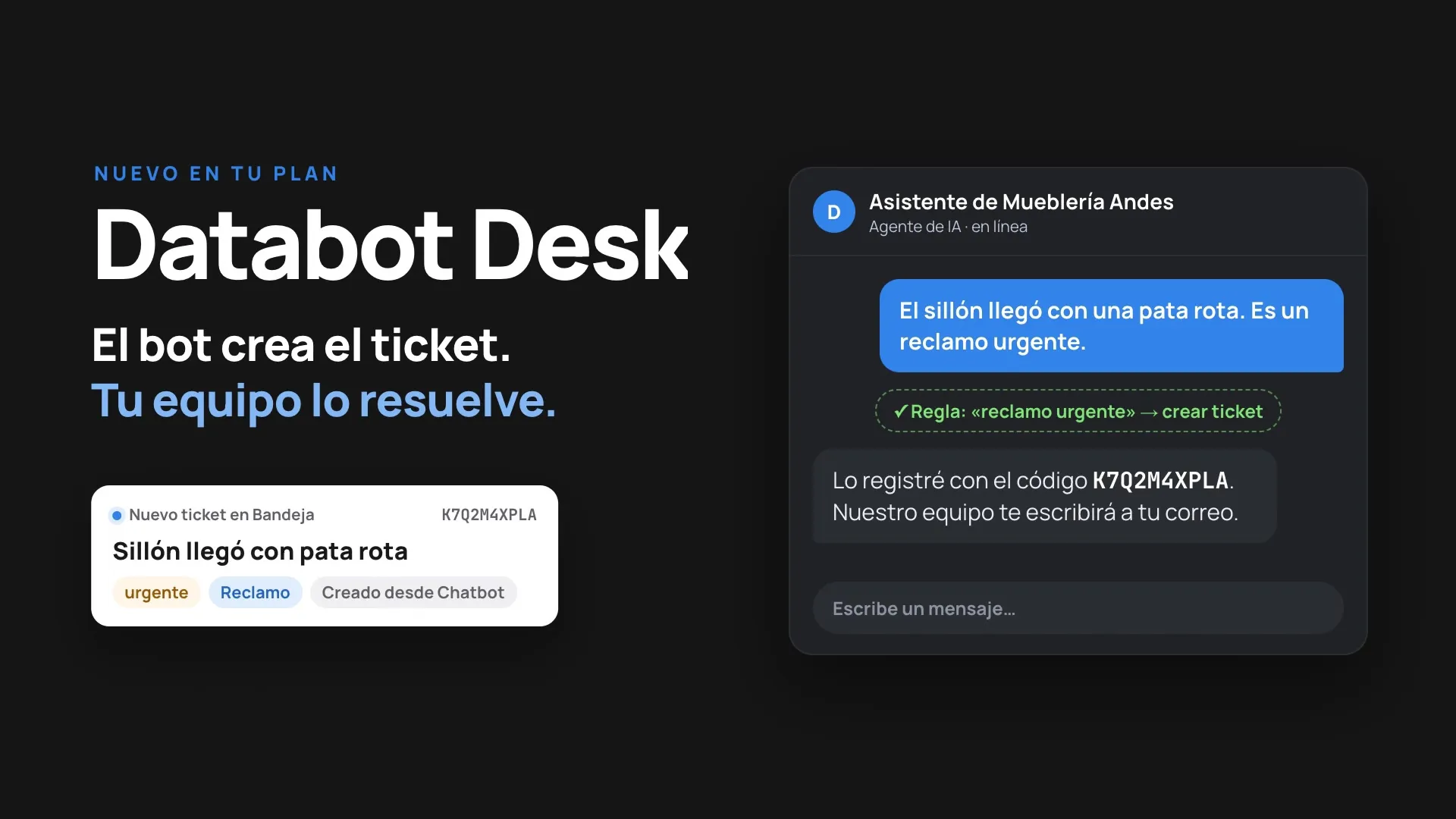
A customer writes after hours: the armchair she bought arrived with a broken leg, and it’s an urgent complaint. The bot asks for her order number and email, applies the rule in its instruction (“urgent complaint → create ticket”) and gives her a tracking code.
The ticket lands in the inbox with urgent priority, the Complaint category and the “Created from Chatbot” source. First thing in the morning, a rule assigns it to the after-sales agent, who opens the ticket and already has the order, the email and the full conversation. She replies by email, schedules the pickup and changes the status to “in progress”. If the customer asks the bot again, it shows her the real status of the case.
You decide when the bot creates a ticket
Rules are written in the bot’s instruction, in your own words. You don’t need to change the bot or write code: you tell it when to escalate and what data to ask for first. Try the three cases in this example: the bot only escalates what meets your rules.
Create a ticket whenever:
— the customer says it is an urgent complaint.
— they write outside business hours (Mon to Fri, 9:00 to 18:00) and it is a complaint or they ask to talk to an agent.
Before creating it, ask for name, order number, reason and email. Give the customer their tracking code.
If you can resolve the request yourself, resolve it and do not create a ticket.
If the bot can resolve the request, it does, and your team gets nothing. That way the inbox holds only what truly needs a person.
What your team sees in Databot Desk
Inbox. Every case on one board, each with an owner. Your team sees tickets as a table or a board, grouped by status, priority, category or owner.
- Each agent sees the tickets assigned to them.
- Assignment and resolution deadlines (SLAs), with a visible alert when a case is overdue.
- Filters, search and custom columns, with your own fields.
- Discarding isn’t deleting: the ticket goes to the trash and can be restored.
Ticket view. All the case context, without asking the customer twice:
- Customer data, category, priority, status and owner.
- The previous conversation with the bot, so nobody starts from scratch.
- Internal notes, files and custom fields.
- Reply to the customer by email, in the same thread, from the ticket.
Tracking for your customer. With their tracking code, the customer checks the ticket status in the same chat, at any time. The bot reads the ticket’s real status in Desk, so your team gets fewer “what about my complaint?” messages and the customer knows where their case stands without waiting for a reply.
Automations. Repetitive work runs on its own. You build flows in a visual editor, no code: you choose when they trigger (when a ticket is created, updated, a field changes, it’s closed or deleted), add conditions and define what happens:
- Send an email or a WhatsApp template.
- Assign an agent or a team.
- Add a row in Google Sheets or create a Google Calendar event.
- Send a webhook to another system.
For example: when a ticket is created with urgent priority, assign it to the after-sales team and send the customer a confirmation email.
Analytics. A dashboard with the period summary, filterable by agent and date, so you know how long your team takes and where cases pile up:
- Total, open and closed tickets, and resolution rate.
- Average assignment, resolution and total time.
- Breakdown by status and category.
- Tickets per agent, with their SLA compliance.
WhatsApp to receive the case, email to resolve it
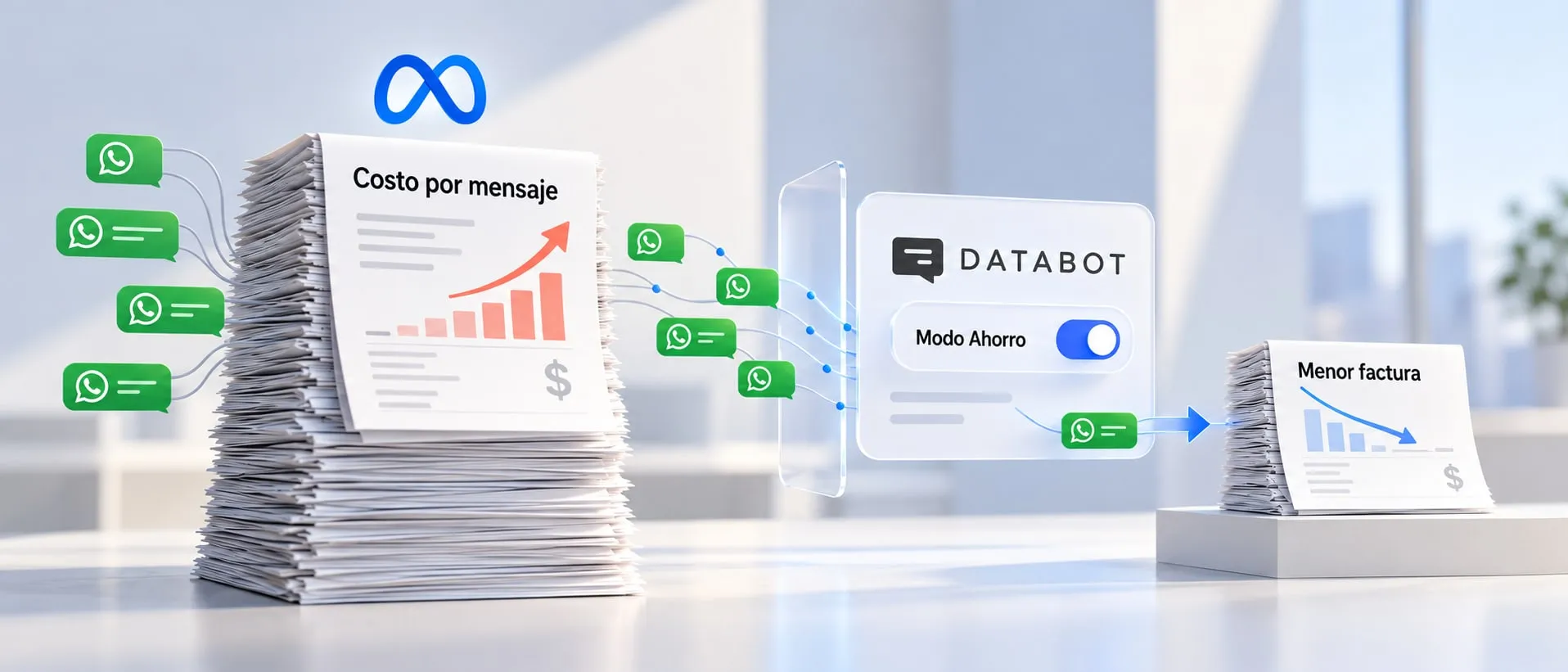
Since October 1, 2026, Meta charges WhatsApp service messages from message 1,001 of each number, every month (we explain it in how much the WhatsApp API costs). A complaint can take several days of back and forth.
- Without Desk, the whole case lives in the chat: every back and forth is one more WhatsApp message, and the case has no owner or deadline.
- With Desk, the bot receives the case on WhatsApp and opens the ticket. Your team replies by email, with the history in view.
Databot Desk FAQ
Does Databot Desk cost extra?
No. Databot Desk is included in your plan. We activate it with you in a 30-minute session.
Do I have to change my bot?
No. Your bot stays the same; we only add to its instruction when it should create a ticket. You decide the rules and can adjust them anytime.
How does the customer know their case status?
When the ticket is created, the bot gives them a tracking code. With that code, the customer asks the bot and gets the current status. You can also set up an automatic email every time the ticket changes status or is closed.
Can I create tickets manually?
Yes. Besides the ones the bot creates, your team can create tickets from the inbox, for example for cases that come in by phone.
Who sees each ticket?
Admins see the whole inbox. Each agent sees the tickets assigned to them.
How to activate Databot Desk
We get it running with you in 30 minutes:
- Book a session. Pick the time. Bring whoever coordinates your agents.
- We set it up together. We write the instruction for when to create tickets and define categories, team, SLAs and one automation.
- Your bot starts escalating. We test a ticket end to end. From that day on, cases land in your inbox.
Databot Desk is already included in your plan. Book your activation and get to your after-sales peak with your cases in order.